How to import delivery stops from Excel, CSV or Google Sheets
7 steps4 min readUpdated
DayRoute imports delivery orders from Excel (.xlsx), CSV or text files, or from rows pasted straight from Excel or Google Sheets, and shows any problem before anything is imported. Here is how to get your spreadsheet of orders in without retyping anything.
In this guide
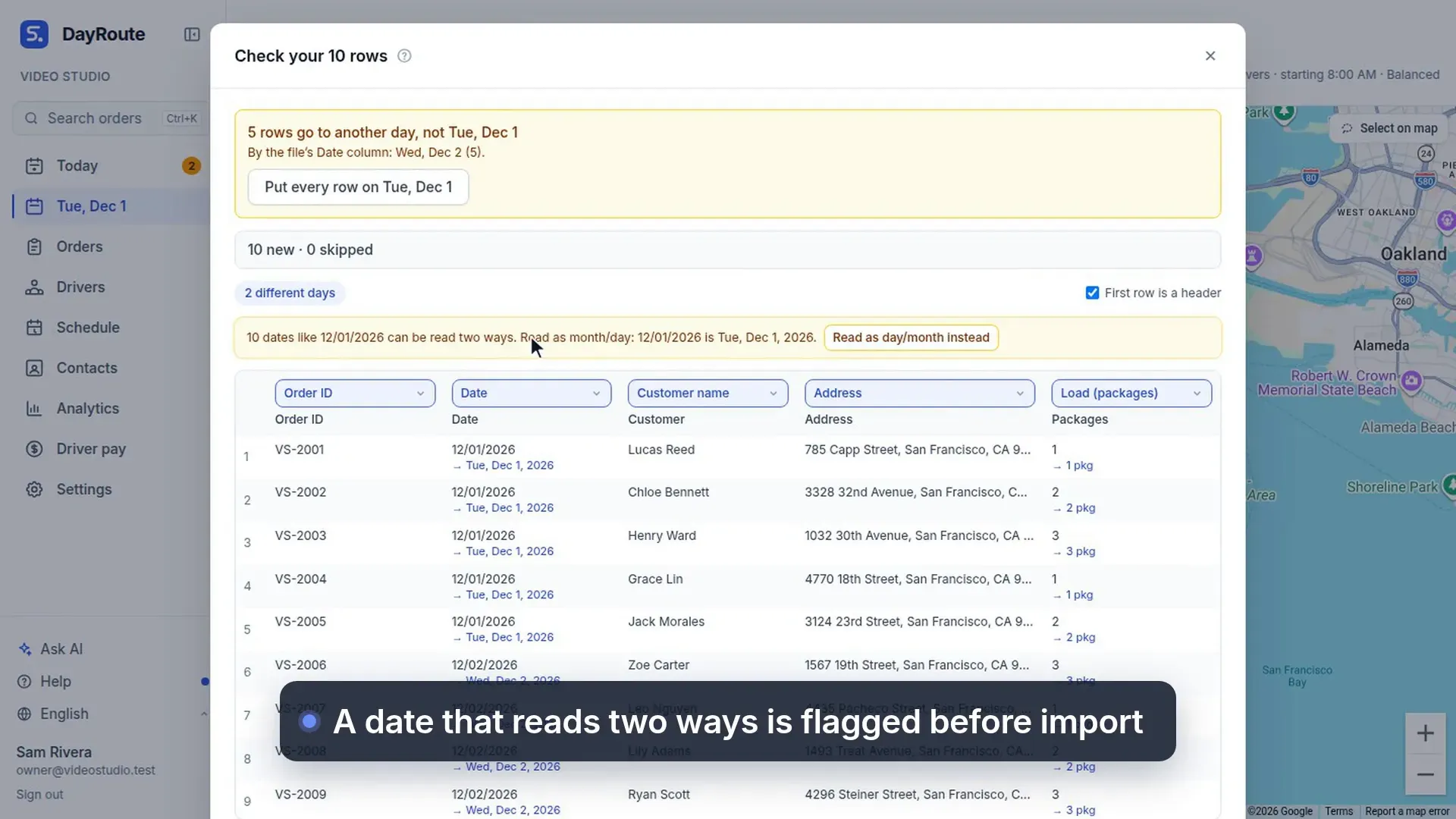
What this video shows
Paste orders from a spreadsheet as they are: columns are recognized and dates that read two ways are flagged.
- Bring in orders from a spreadsheet.
- Orders in a spreadsheet?
- Copy the rows, and paste them in, just as they are.
- Columns are recognized for you.
- Dates that read two ways are flagged first.
- Then import. Each order goes to its own day.
Step 1: Open the stop list
On the day you are planning, open the list on the left and click Import.
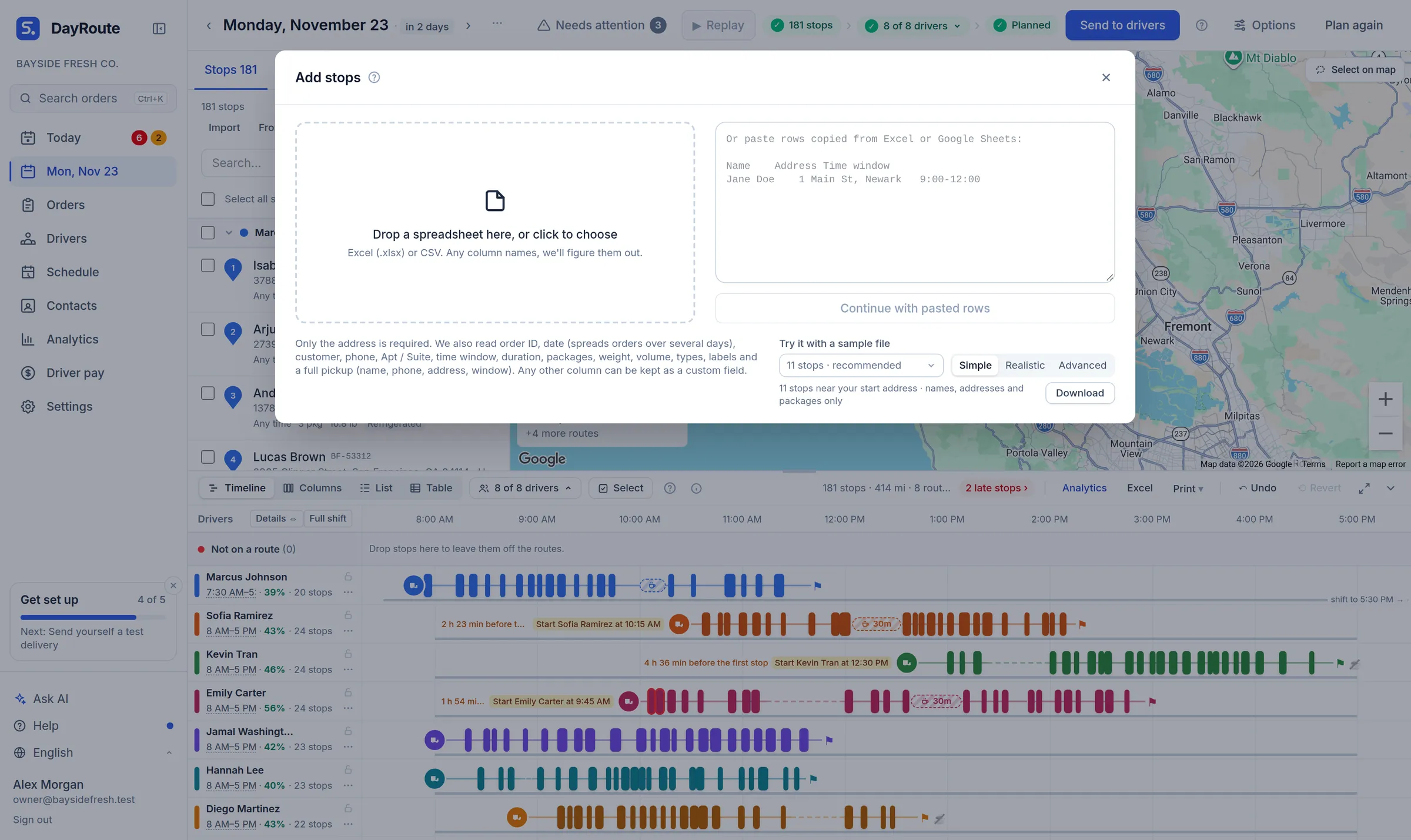
Step 2: Paste or drop your file
Copy the rows (with the header row) from Excel or Google Sheets and paste them in the box, or drop an .xlsx, .csv or .txt file on the left (an old .xls file is refused: save it as .xlsx first).
Step 3: Check the columns
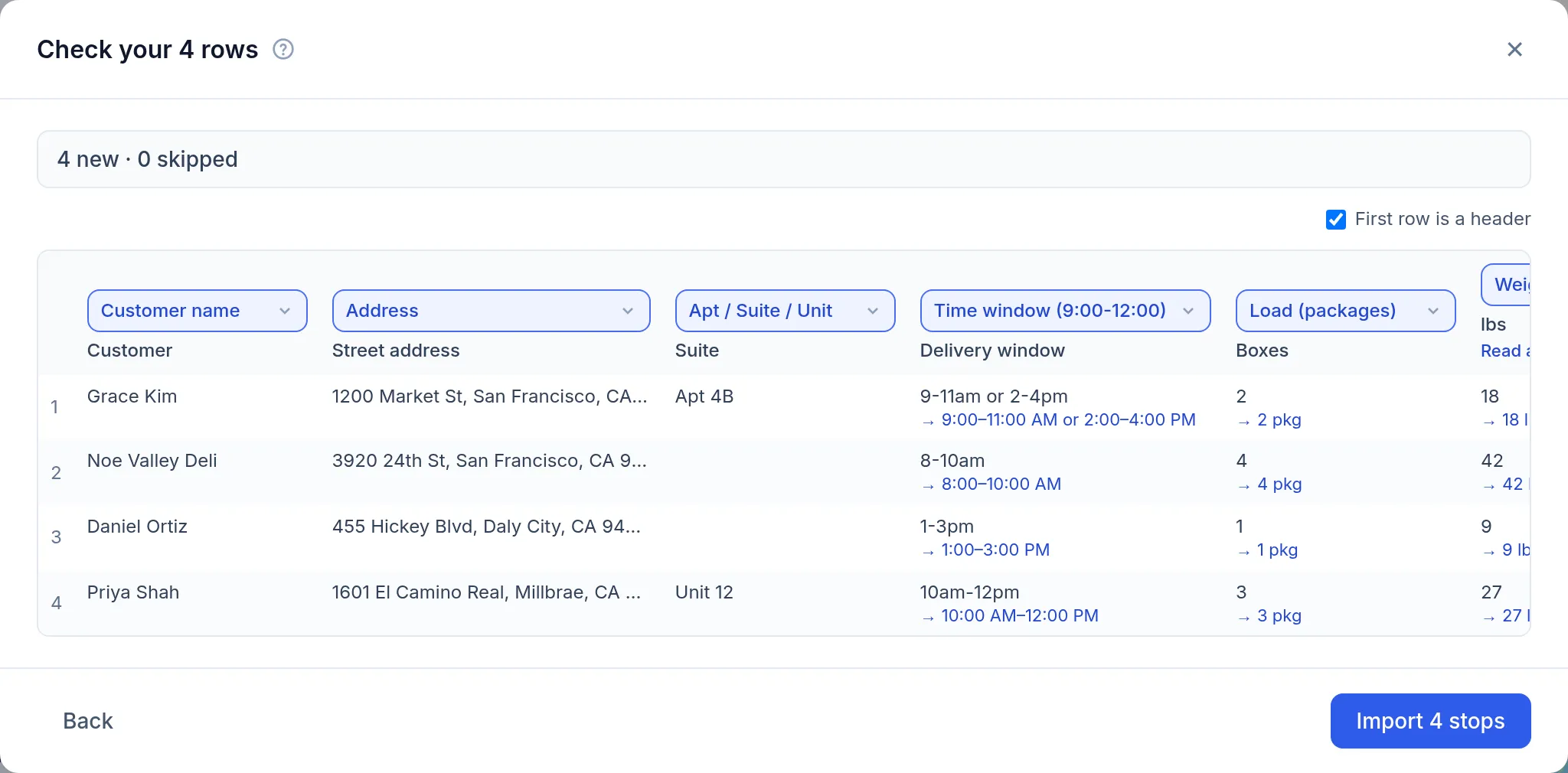
DayRoute recognizes common column names in English, Spanish, Vietnamese and Swedish: name, address, unit, phone, email, time window, service time, packages, weight, volume, notes, order ID, date and pickup details. Fix any column it guessed wrong; it remembers your choice next time.
Step 4: Review problems before importing
Rows with a missing address or an impossible time window are highlighted. Fix them in your file or import the rest and add them later.
Step 5: Check addresses on the map
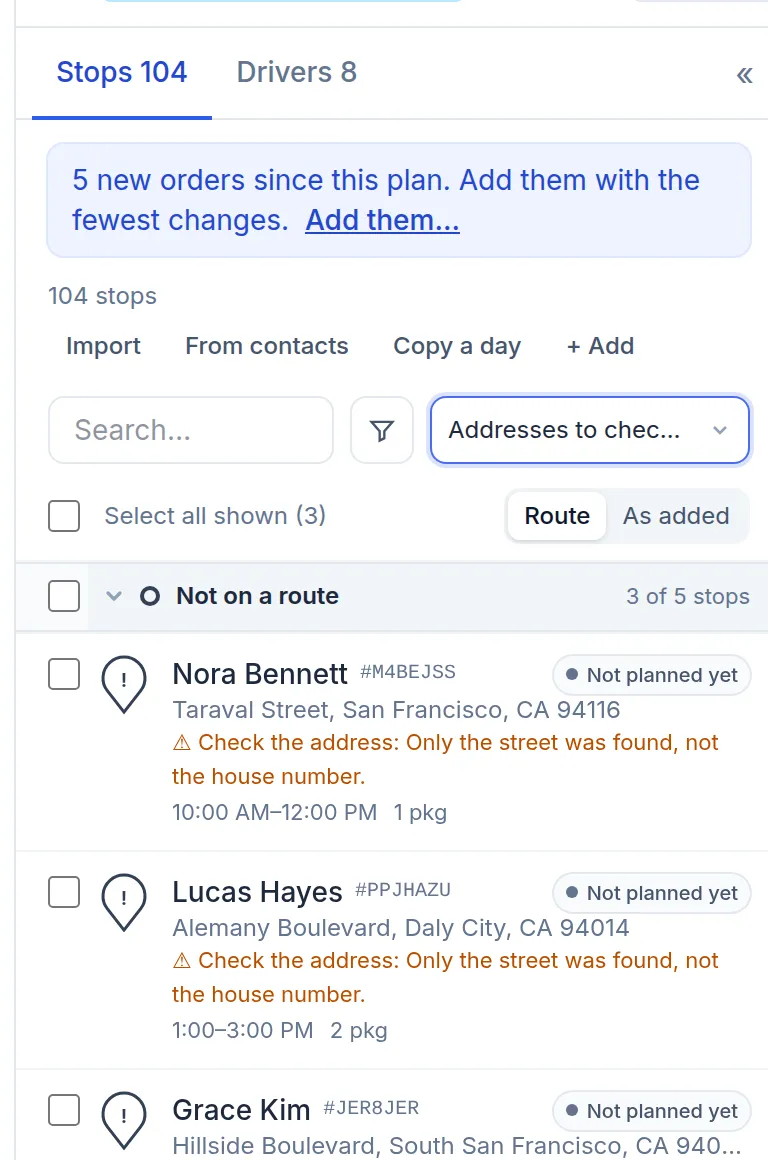
Imported stops are placed on the map. Vague addresses get a warning in the list; open the stop, click Move the pin, drag it and click Save pin.
Step 6: Check possible duplicates
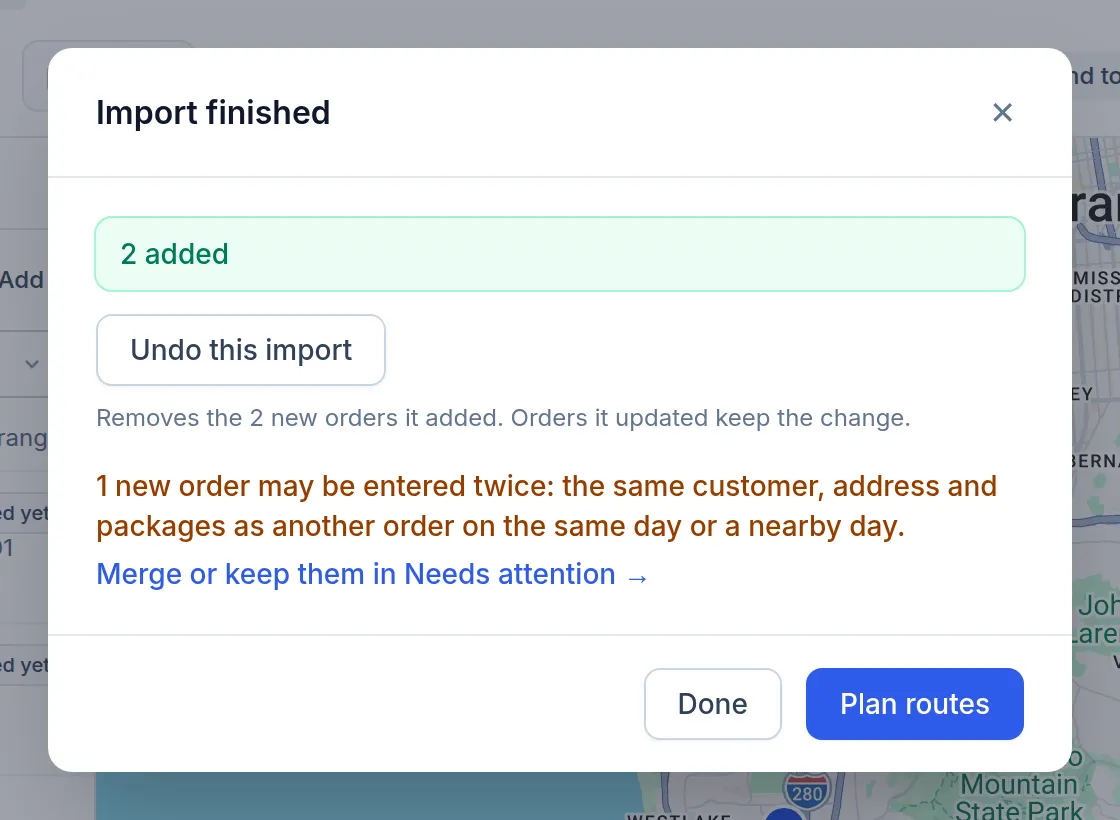
Import finished says how many new orders may be duplicates: the same customer and address already have an order on the same day or a day or two away. Click Merge or keep them in Needs attention and answer each one: Merge (and pick which order stays), Keep both, or Not a duplicate.
Step 7: Undo an import
Imported the wrong file? For 30 minutes, Undo this import on Import finished removes the new orders the import added. Orders it updated keep the change, and an order already on a route sent to a driver stays: take it off the day instead.
Questions this guide answers
- How do I import delivery orders from Excel or CSV without mixing up the dates?
- How do I replace spreadsheet route planning? A 1-day switch plan
- What route software supports recurring weekly deliveries to the same customers?
- How do I plan routes when a customer gives two delivery windows, such as morning or afternoon?
Related feature
From spreadsheet to map in seconds →